StoreShots AI: App Store and Play Store Screenshots From Real App Screens
Store screenshots are still the core job. StoreShots AI takes real iOS and Android captures and turns them into listing-ready creatives — sized for App Store Connect and Google Play, with benefit-led headlines that match the UI you already shipped.
1. Why store screenshots still matter
A store listing is often the first time a stranger sees your product. App Store Connect wants 1290×2796 portrait sets. Google Play wants 1080×1920 phone screenshots plus a feature graphic. Teams that ship a new onboarding flow and leave last quarter's screenshots in the listing lose conversion before the install even happens.
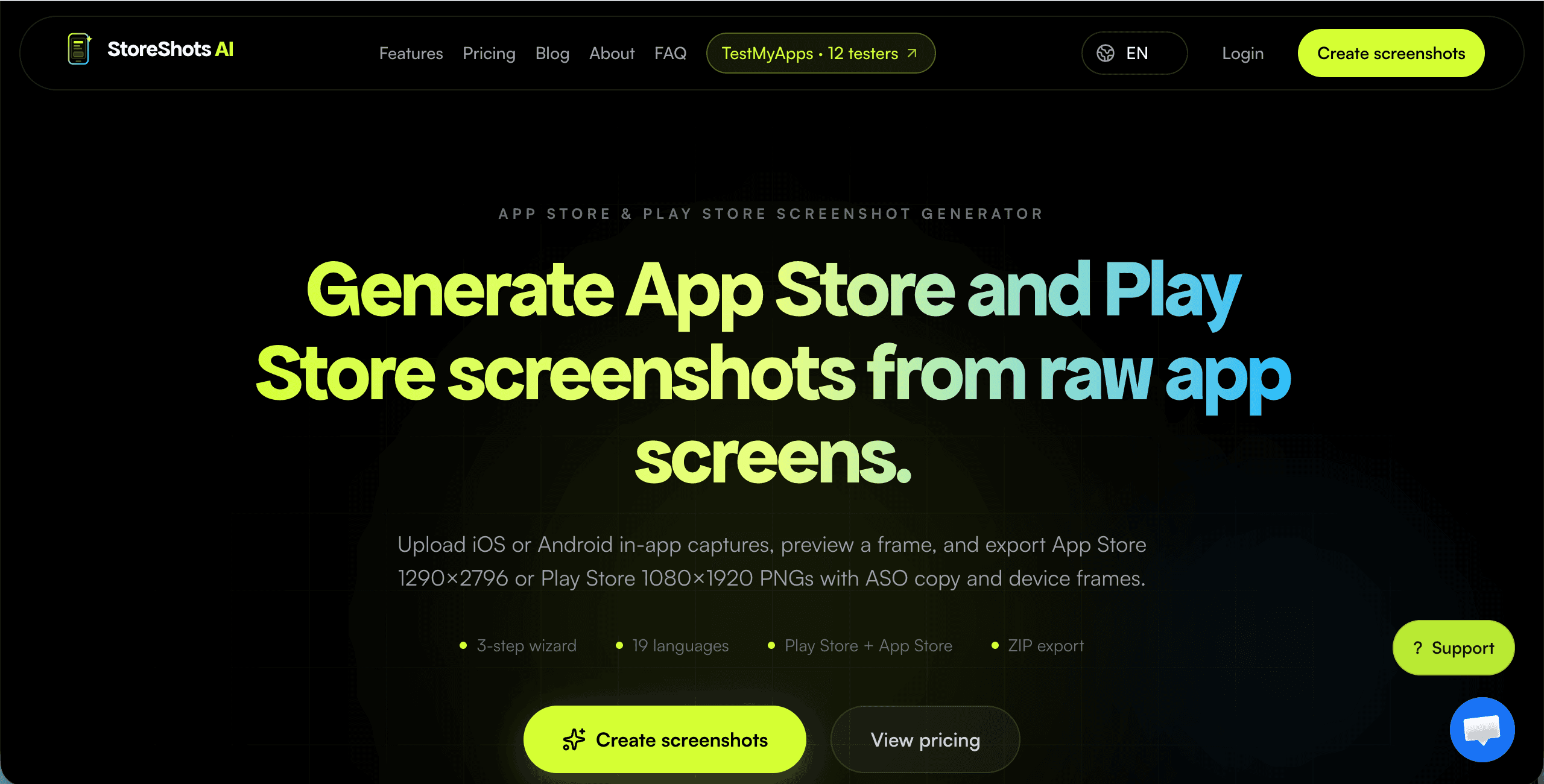
Use the App Store screenshot generator or the Play Store screenshot generator: upload the real screens, describe the audience, and export store-correct PNGs with device frames and ASO copy. It is not a moodboard generator. It is a listing workflow.
2. The listing workflow
Start in StoreShots mode — not Mobile UI/UX. Attach the actual captures in the order you want the carousel to read. First image becomes slide 1. Write a short brief: who the app is for, what outcome the first five slides should sell, and whether you need iOS, Android, or both.
The studio then plans a coherent story: opening benefit, proof of the core loop, social or trust moment, and a close that matches the store's call to action. Headlines sit on the real UI so reviewers and shoppers see the same product they will install.
3. Two stores, one project
Apple and Google do not share screenshot dimensions. Rebuilding the same campaign in Figma twice is how listings drift. StoreShots keeps one creative direction and exports both: App Store 1290×2796 and Play Store 1080×1920. You still review each set — crop, type size, and safe areas differ — but you do not restart the story.
4. How this sits next to Mobile UI/UX
StoreShots also designs multi-screen mobile UI from a prompt. That is a different job. Use Mobile UI/UX when you do not have screens yet. Use StoreShots when the app exists and you need listing creatives. The homepage studio shows both tabs because founders hit both problems — not because screenshots became a secondary mode.
Read the companion guide on designing mobile UI from a prompt. When the UI is built, come back here and generate the listing from real captures.
5. How this connects to ClyroLabs
ClyroLabs builds products and also operates the launch layer. After screenshots, many teams still need verified testers for Google Play closed testing. Pair StoreShots with TestMyApps managed closed testing. If you need the app itself built, hire the studio for MVP or SaaS work from the homepage brief.
6. Get started
Open the Play Store screenshot generator or the App Store screenshot generator, upload your screens, and generate a dual-store set. Credits are pay-when-you-create — no subscription required to try a listing pack.